
To check your website's SEO, look at what Google itself reports about the site, not just what a third-party checker guesses. In 30 minutes you can confirm that Google indexes your pages, see whether search traffic is rising or falling, find out why some pages are excluded, and check real-user speed. All of it uses free tools: Google Search, Search Console and PageSpeed Insights.
You'll need access to Google Search Console for the site. If it isn't set up, verifying a domain takes about ten minutes, and data starts collecting from that point.
The full check takes about 30 minutes end to end: 2 minutes to confirm indexing, five 5-minute steps covering traffic, indexing, page inspection, speed and on-page basics, and a final 3 minutes on robots.txt and structured data.
The 30-minute SEO check
1. Confirm Google can find the site (2 minutes)
Search Google for site:yourdomain.com. You're looking for three things:
- Results appear. No results at all usually means the site is blocked from indexing (a sitewide
noindexor a robots.txt block) or is brand new. - The right pages appear. Staging URLs, test pages, internal search results or old content showing up means Google is indexing things you didn't intend.
- The rough count is plausible. The number is an estimate, so don't treat it as exact, but 40 results for a 2,000-product store tells you something is wrong.
2. Check the traffic trend in Search Console (5 minutes)
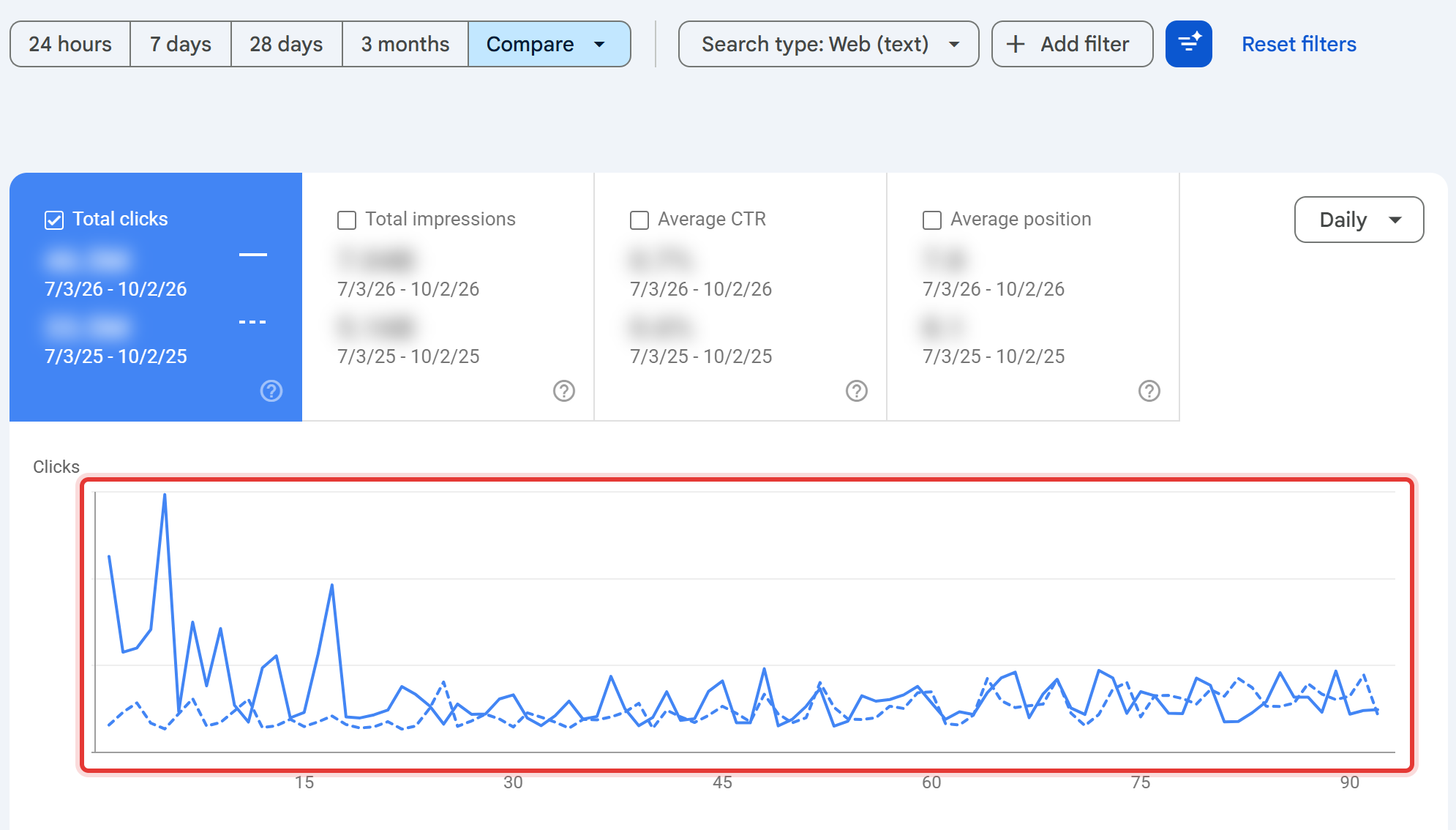
Open Performance → Search results, set the date range to the last 3 months and turn on Compare with the same period last year. Comparing year on year removes most seasonality.
Look at:
- Clicks and impressions together. Impressions falling means you're showing up less; impressions steady but clicks falling usually means lower positions or SERP changes (such as AI summaries) taking the clicks.
- The Pages tab, sorted by click change. A drop concentrated on a few pages points to page-level causes; a drop spread evenly points to a sitewide issue or an algorithm update.
- The Queries tab. Check whether your most important queries still bring clicks.
3. Read the Page indexing report (5 minutes)
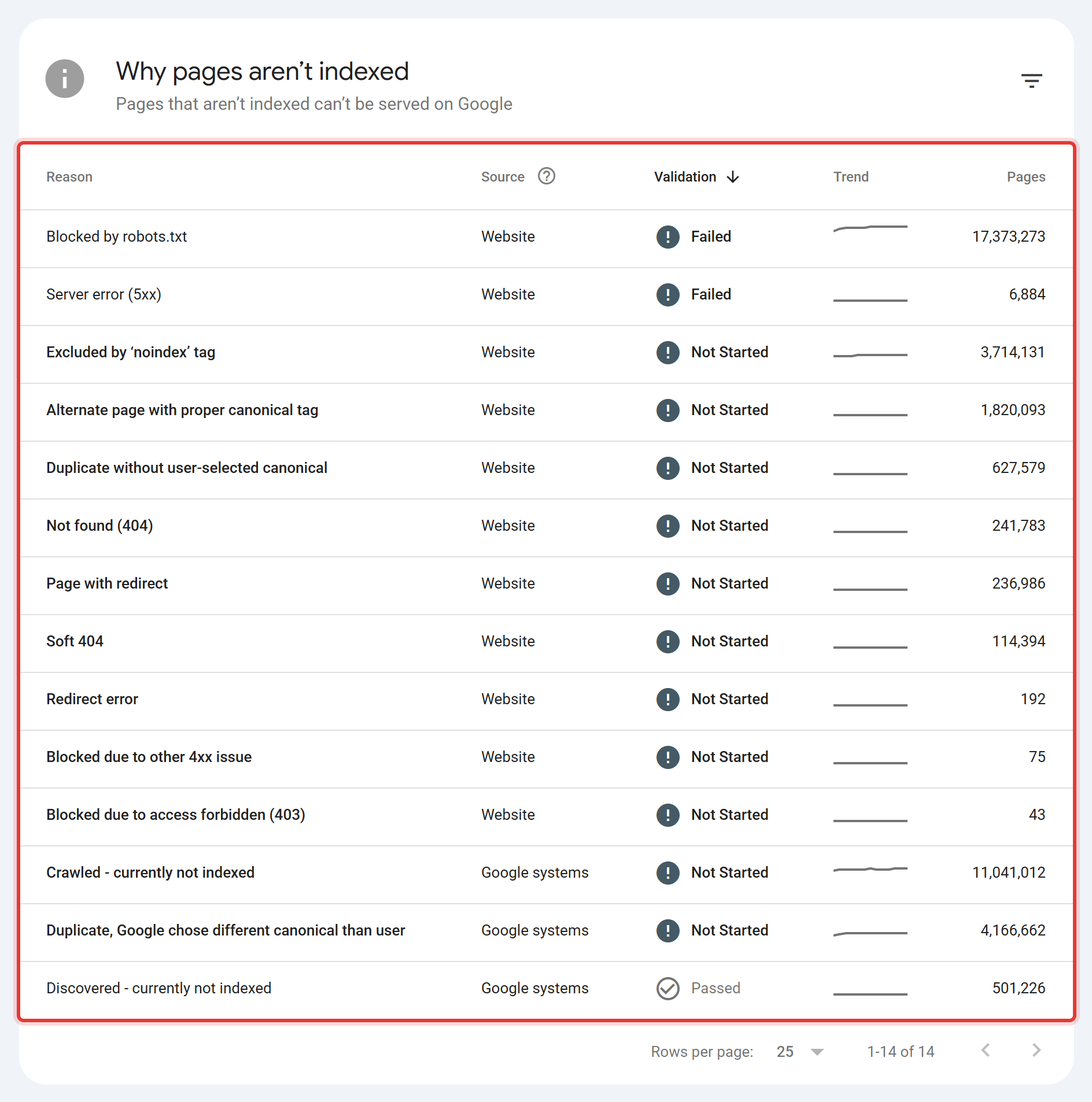
Open Indexing → Pages. The headline number matters less than the table titled "Why pages aren't indexed". Some reasons are normal; some are problems:
- Usually fine: "Alternate page with proper canonical tag", "Page with redirect", "Excluded by 'noindex' tag" (if you added it on purpose).
- Worth investigating: "Crawled – currently not indexed" and "Discovered – currently not indexed" on pages you care about, "Duplicate, Google chose different canonical than user", "Soft 404", and any "Server error (5xx)".
Click a reason to see example URLs. If your important pages are in the problem rows, you've found the most valuable result of the whole check.
4. Inspect your three most important pages (5 minutes)
Paste your homepage and two money pages (a top product, service or category page) into the URL Inspection bar at the top of Search Console. For each one check:
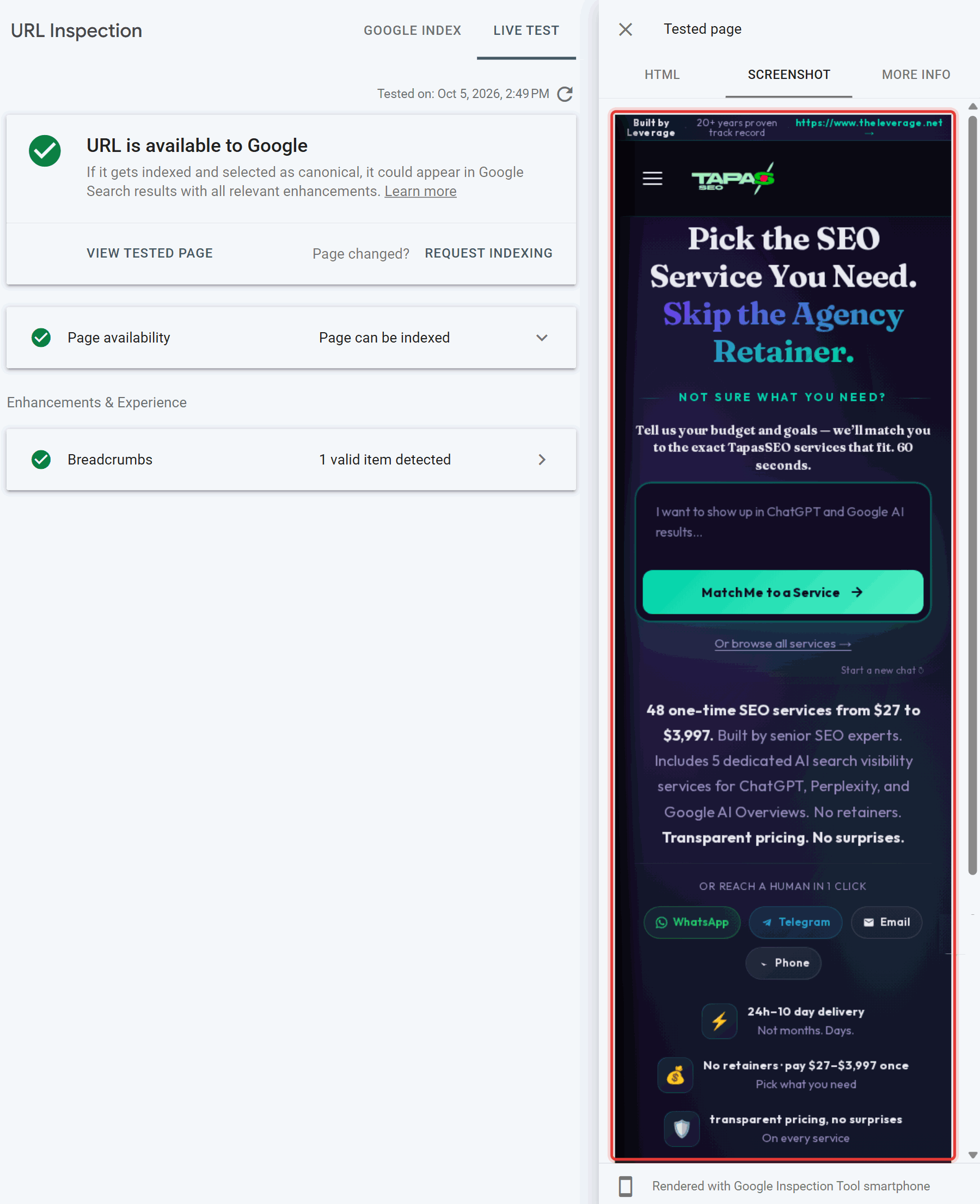
- "URL is on Google" — if not, the reason is shown.
- User-declared canonical vs. Google-selected canonical. If they differ, Google is treating another URL as the main version.
- View crawled page → Screenshot. This is what Googlebot rendered. Missing content, a cookie wall covering everything or a blank page means Google can't see what visitors see.
5. Check real-user speed (5 minutes)
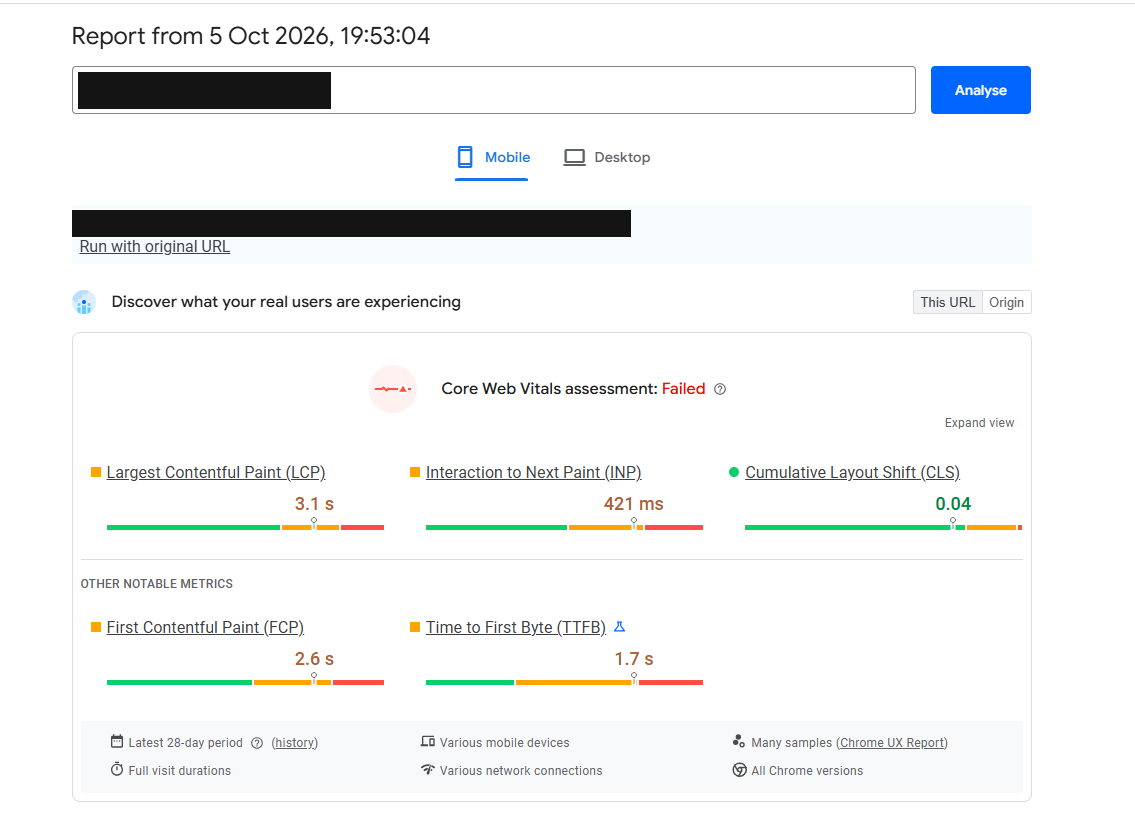
Run the same three pages through PageSpeed Insights (pagespeed.web.dev). Read the top panel first: "Discover what your real users are experiencing." That's field data from real Chrome users, and it's what Google uses for Core Web Vitals. The Lighthouse score underneath is a single lab test; useful for debugging, not for judging.
The thresholds for "good" are:
- Largest Contentful Paint (LCP): 2.5 seconds or less
- Interaction to Next Paint (INP): 200 milliseconds or less
- Cumulative Layout Shift (CLS): 0.1 or less
Don't panic about a fail: in June 2025 fewer than half of mobile pages (48%) passed all three, and slow loading (LCP) was the most common failure, according to the 2025 Web Almanac. Do fix it if your competitors pass and you don't.
Google's old Mobile-Friendly Test was retired in December 2023. If a guide tells you to use it, it's out of date; Lighthouse covers mobile checks now.
6. Spot-check titles, descriptions and headings (5 minutes)
For your key pages, check:
- Title tag: unique, describes the page, includes the main thing people search for, brand at the end.
- Meta description: present and specific. Google often rewrites it, but a missing one is a missed chance. A third of pages on the web don't have one.
- One H1 that matches what the page is about. Around one in three pages has no non-empty H1.
The quickest way: paste a URL into the free TapasSEO Audit Preview, which fetches the page live and runs on-page checks with no email required. For more than a handful of pages, Screaming Frog's free version crawls up to 500 URLs and lists every title, description and H1 in one export.
7. Check robots.txt and structured data (3 minutes)
Open yourdomain.com/robots.txt in a browser.
- It should load (a 404 is harmless; a server error is not).
- Look for
Disallow: /underUser-agent: *— that blocks the whole site. - Note any rules for AI crawlers like GPTBot or ClaudeBot. Blocking them is a choice, but make sure it's yours and not a plugin default.
Then paste a product or article URL into Google's Rich Results Test to confirm any structured data is valid. Product, Article and Breadcrumb markup still produce visible results; FAQ rich results stopped appearing in Google on 7 May 2026, so a checker warning about missing FAQ schema isn't a priority.
What your results mean
Use this table to turn each finding into a next step.
| What you saw | Likely cause | Next step |
|---|---|---|
site: search returns nothing | Sitewide noindex, robots.txt block, or very new site | Check robots.txt and the homepage's meta robots; inspect the homepage in Search Console |
| Impressions down year on year across most pages | Algorithm update, sitewide technical change, or a migration | Line the drop date up against site releases and Google's update history |
| Impressions steady, clicks down | Lower positions, or AI summaries/other SERP features taking clicks | Check average position on top queries; search them yourself to see the SERP |
| Important pages "Crawled – currently not indexed" | Thin or duplicate content, weak internal linking | Improve the content and add internal links from strong pages |
| "Google chose different canonical" on key pages | Duplicate versions (parameters, HTTP/HTTPS, trailing slash) or conflicting signals | Align canonical tags, internal links and sitemap on one URL |
| Rendered screenshot missing content | JavaScript rendering problem or blocked resources | Technical audit, starting with rendering |
| Core Web Vitals fail on mobile, mostly LCP | Large hero images, slow server response, render-blocking scripts | Fix by template; start with the template that carries most traffic |
| Missing titles/H1s on many pages | Template problem | Fix the template, not each page |
What free SEO checkers measure (and what a score means)
Free web SEO checkers fetch your page from outside, run a list of on-page and technical rules, and turn the results into a score. They're useful for a fast first pass on titles, headings, broken links, HTTPS and page weight.
Three things to know before trusting the number:
- Scores aren't comparable between tools. Each one chooses its own checks and weights. A site can score 62 in one checker and 88 in another on the same day.
- They can't see Google's data. A checker doesn't know whether Google indexes your page, which canonical it picked, or which queries you rank for. Search Console does.
- They don't know your business. A missing alt attribute on a decorative image and a broken canonical on your best-selling category may carry similar weight in a checker. They're not similar problems.
Use checkers for the on-page snapshot, and Search Console for the verdict. Our guide to free SEO audit tools compares what each free tool actually checks.
Checking a competitor's SEO
You can't open a competitor's Search Console, but you can see a lot from outside: run their key pages through PageSpeed Insights (field data is public for sites with enough traffic), view their titles and headings with a crawler, check their robots.txt, and search your target queries to see which of their pages rank. The useful question is which pages earn their rankings and why; our competitor SEO analysis guide covers it.
When a check isn't enough
A 30-minute check tells you whether something is wrong. It doesn't tell you everything that's wrong or what to fix first. Move to a full audit when:
- Step 3 shows important pages excluded and you can't see why.
- Traffic dropped and the cause isn't obvious from the trend.
- The site has more than a few hundred URLs, uses a JavaScript framework, or runs in several languages.
- You're about to migrate, redesign or change platforms.
Our SEO site audit guide walks through the full process. To check one page in depth, the 360 SEO Page Audit reviews a single URL across 22 sections.
Frequently asked questions
How do I check my website's SEO for free? Use Google Search Console (indexing, queries and clicks), PageSpeed Insights (real-user speed) and a site: search. Add a free on-page checker for titles and headings. Together they cover what most paid checkers report, plus Google's own data.
Can I check SEO without Search Console? Partly. External checkers and PageSpeed Insights work on any public URL. Without Search Console you can't see indexing reasons, queries or clicks, which are the most decision-useful data.
What is a good SEO score? There's no standard. Each tool scores differently. Better measures: the share of your important pages that are indexed, whether your key templates pass Core Web Vitals, and whether organic clicks are growing year on year.
How often should I check my website's SEO? Monthly for the Search Console steps (trend and indexing), and after every significant site release. A full audit once a year, or before a migration.
Is Google's Mobile-Friendly Test still available? No. Google retired it on 1 December 2023, along with Search Console's Mobile Usability report. Use Lighthouse (in PageSpeed Insights or Chrome DevTools) instead.
Check it yourself, then let us check it properly
Paste any URL and watch 3 of a 12-point on-page check run live, no email required. It's the fastest way to see whether the titles, headings and basics on a page are doing their job — use it alongside the Search Console steps above for the full picture. When a page needs the other 9 checks, plus indexing, rendering and structured data reviewed by a person rather than a script, that's what the full audit is for.